

camera_info from the Load3D node, and the other is the path to the 3D model file. The model file path must be located in the ComfyUI/output folder.
Supported Formats
Currently, this node supports multiple 3D file formats, including .gltf, .glb, .obj, .fbx, and .stl.
3D Node Preferences
Some related preferences for 3D nodes can be configured in ComfyUI’s settings menu. Please refer to the following documentation for corresponding settings:
Settings Menu
Inputs
| Parameter Name | Type | Description |
|---|---|---|
| camera_info | LOAD3D_CAMERA | Camera information |
| model_file | LOAD3D_CAMERA | Model file path under ComfyUI/output/ |
Canvas Area Description
Currently, the 3D-related nodes in the ComfyUI frontend share the same canvas component, so their basic operations are mostly consistent except for some functional differences.The following content and interface are mainly based on the Load3D node. Please refer to the actual node interface for specific features.The Canvas area includes various view operations, such as:
- Preview view settings (grid, background color, preview view)
- Camera control: FOV, camera type
- Global illumination intensity: adjust lighting
- Model export: supports
GLB,OBJ,STLformats - etc.
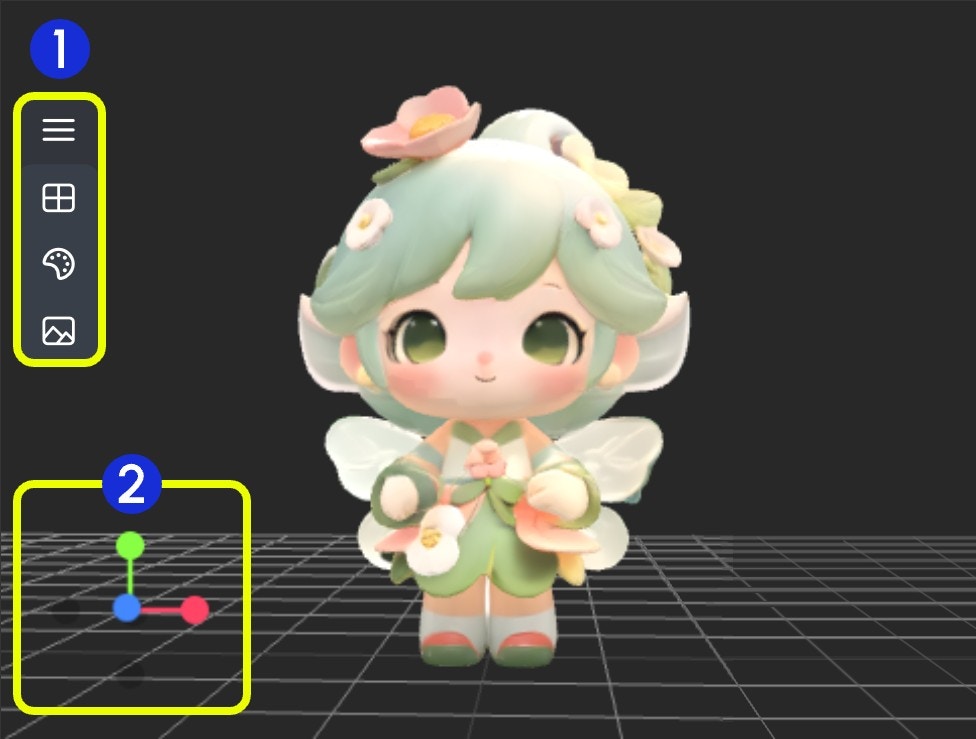
- Contains multiple menus and hidden menus of the Load 3D node
- 3D view operation axis
1. View Operations
View control operations:- Left-click + drag: Rotate the view
- Right-click + drag: Pan the view
- Middle wheel scroll or middle-click + drag: Zoom in/out
- Coordinate axis: Switch views
2. Left Menu Functions
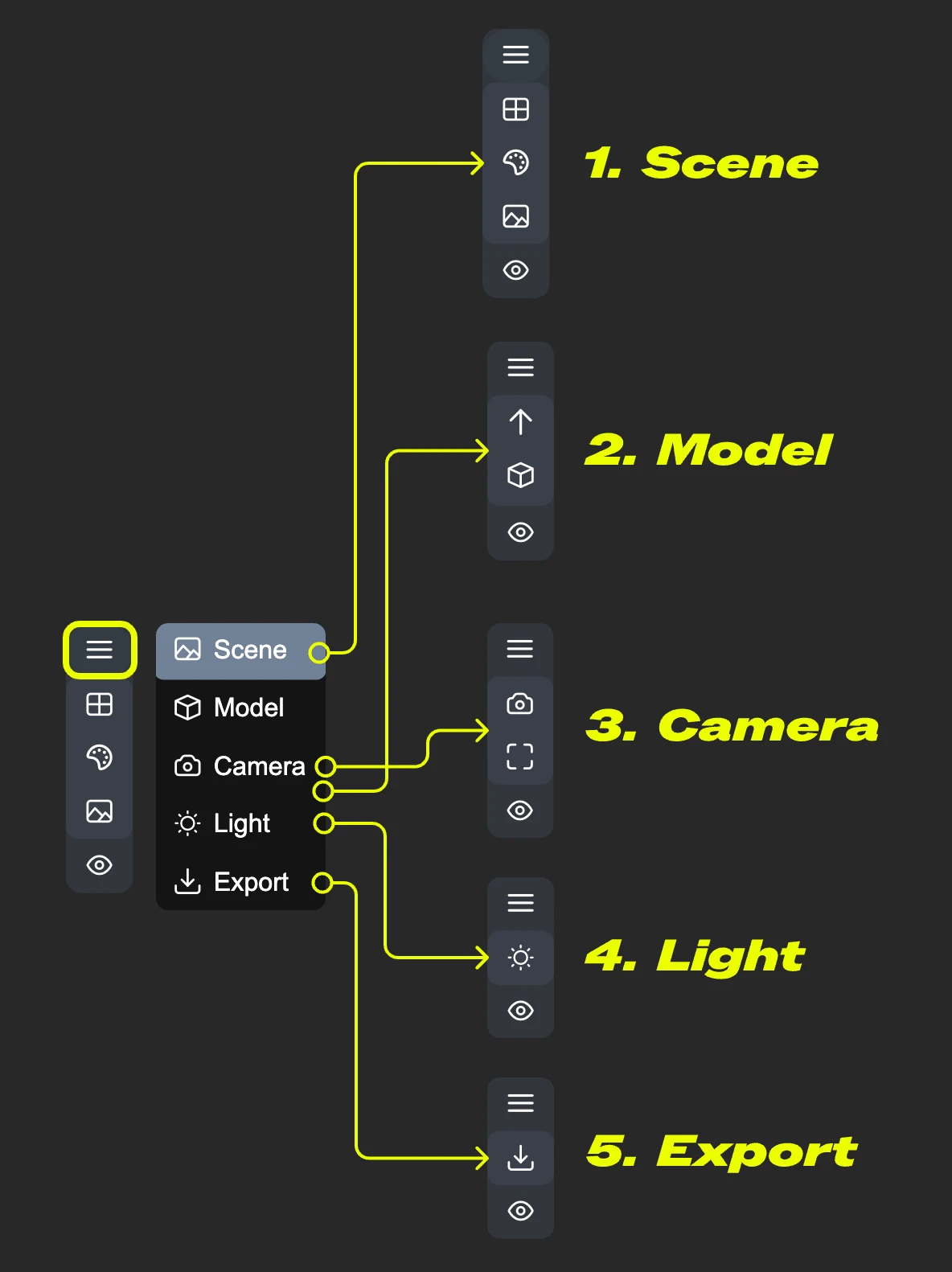 In the preview area, some view operation menus are hidden in the menu. Click the menu button to expand different menus.
-
- Scene: Contains preview window grid, background color, thumbnail settings
-
- Model: Model rendering mode, texture material, up direction settings
-
- Camera: Switch between orthographic and perspective views, set perspective angle
-
- Light: Scene global illumination intensity
-
- Export: Export model to other formats (GLB, OBJ, STL)
Scene
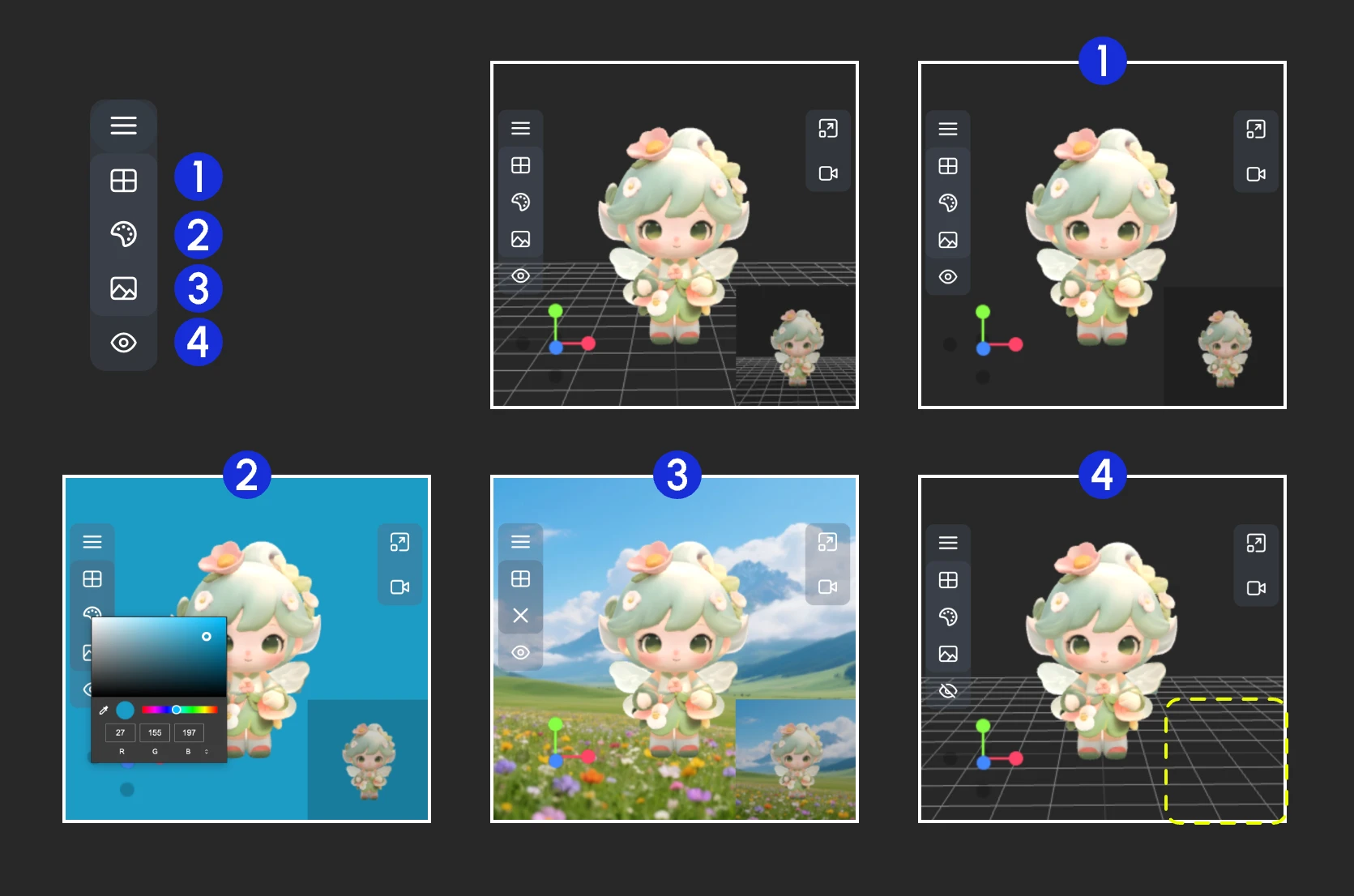 The Scene menu provides some basic scene setting functions:
- Show/Hide grid
- Set background color
- Click to upload a background image
- Hide preview thumbnail
Model
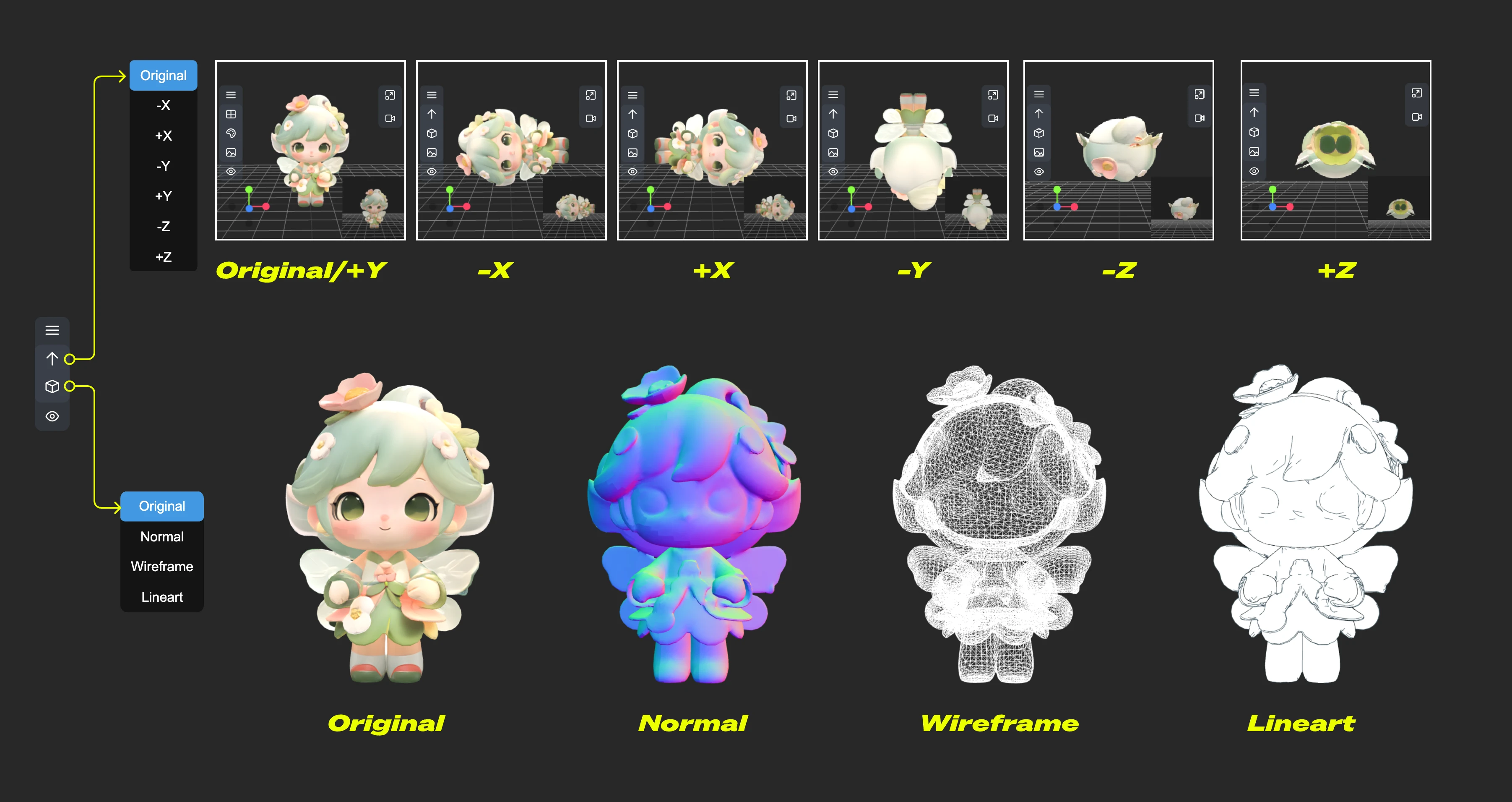 The Model menu provides some model-related functions:
- Up direction: Determine which axis is the up direction for the model
- Material mode: Switch model rendering modes - Original, Normal, Wireframe, Lineart
Camera
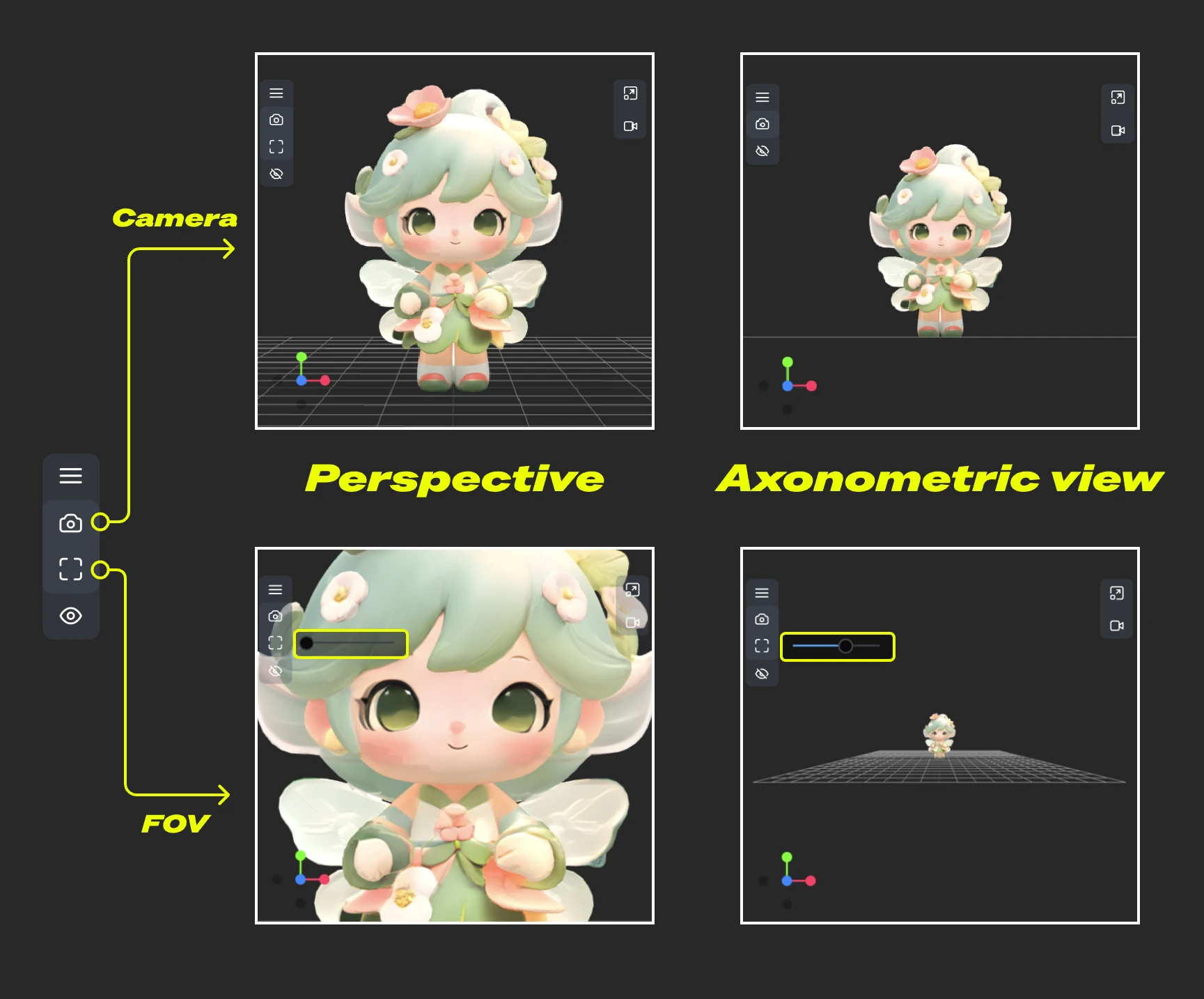 This menu provides switching between orthographic and perspective views, and perspective angle size settings:
- Camera: Quickly switch between orthographic and perspective views
- FOV: Adjust FOV angle
Light
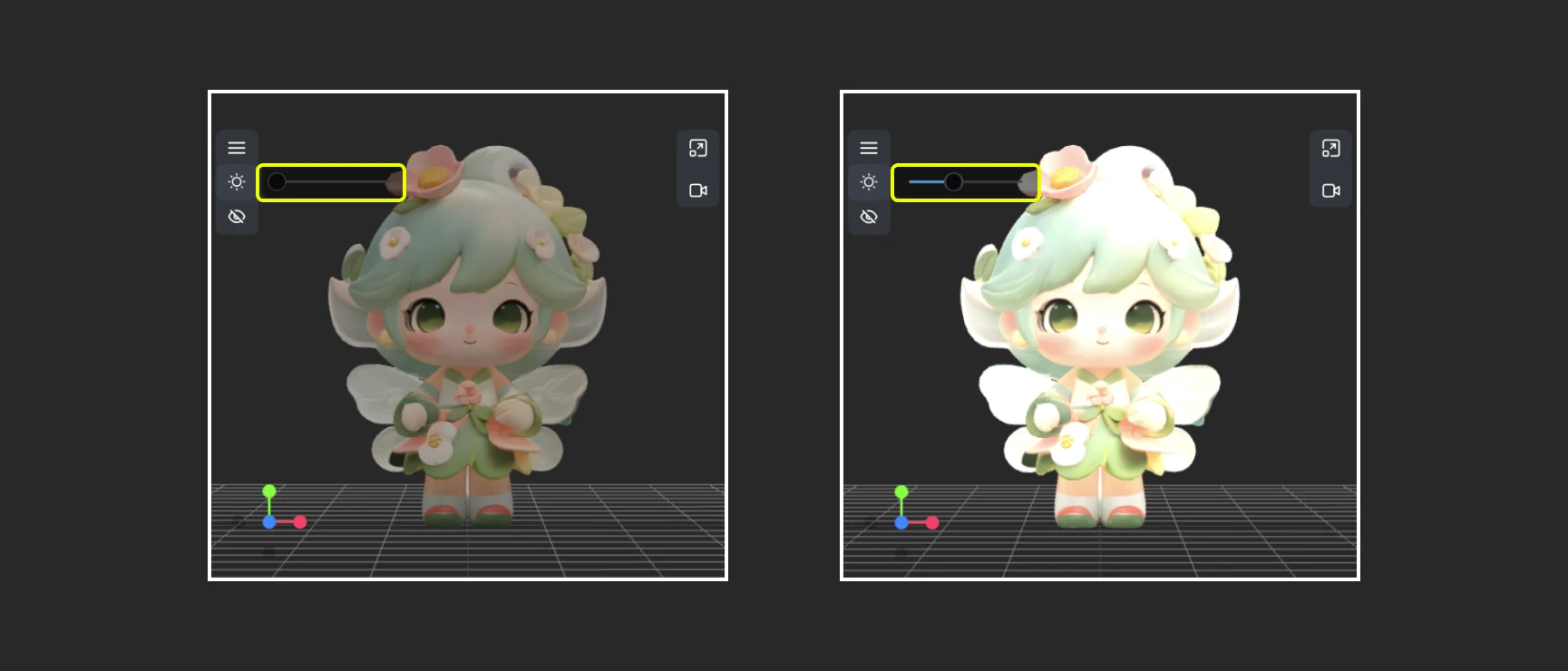 Through this menu, you can quickly adjust the scene’s global illumination intensity
Export
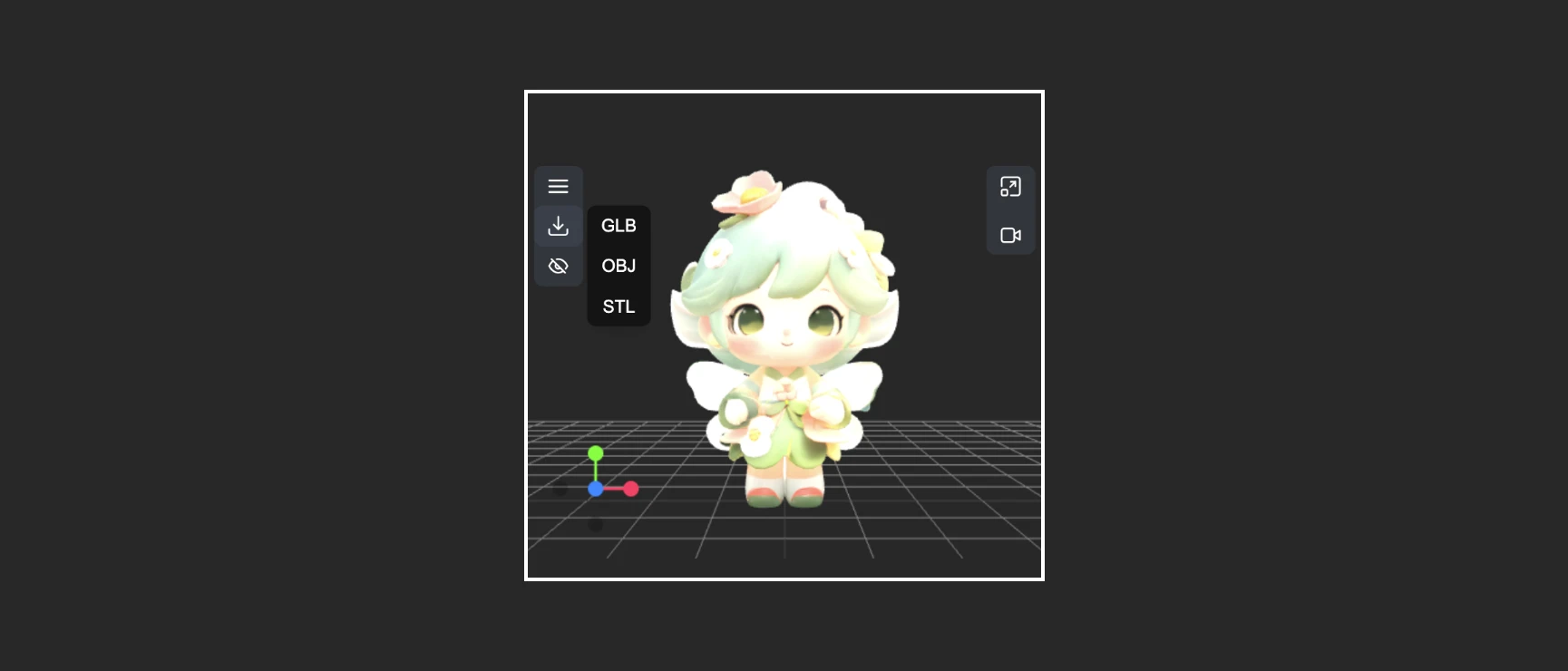 This menu provides the ability to quickly convert and export model formats